- 31 Aug 2026
- 1 posts
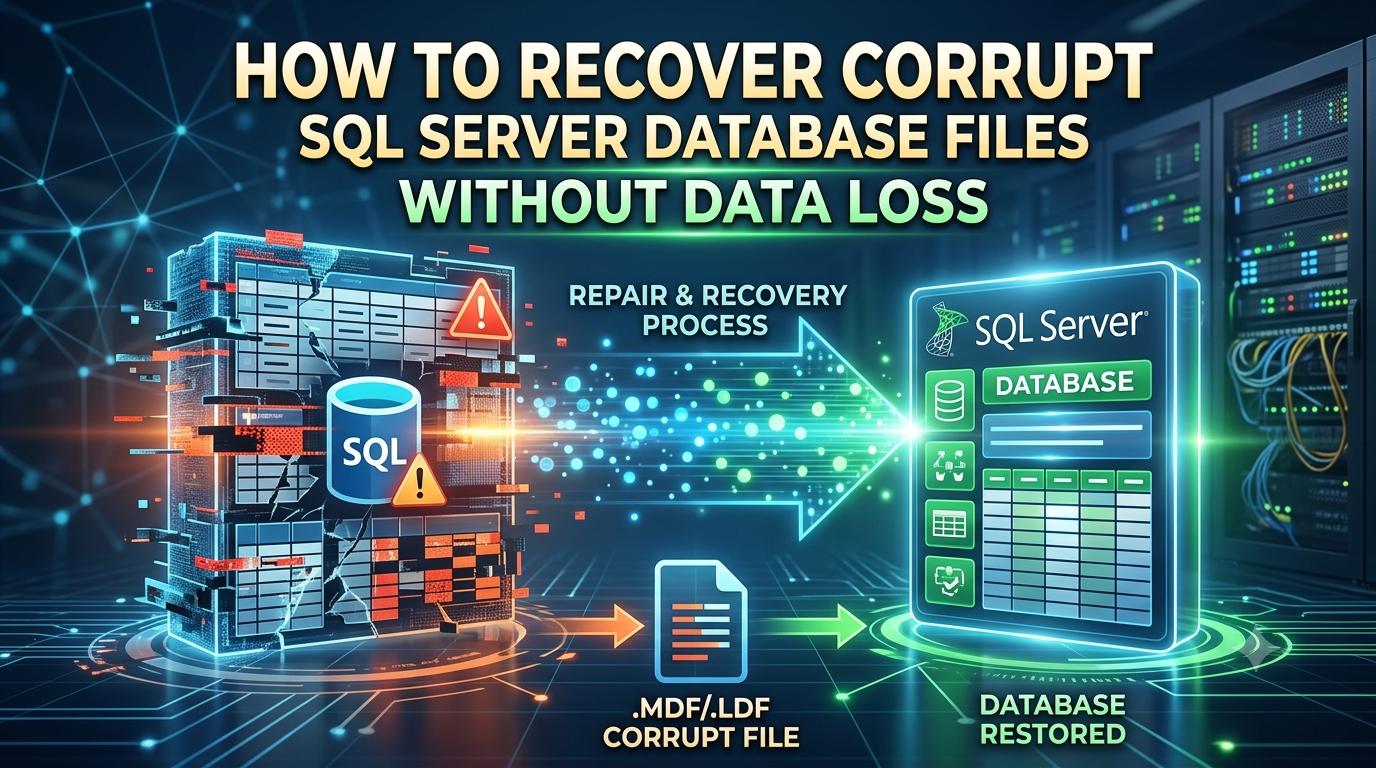
Database administrators dread one thing above almost everything else: opening a database and finding it flagged as suspect, inaccessible, or corrupt. When this happens, SQL Server database recovery becomes the top priority, because every hour of downtime can mean lost transactions, halted applications, and frustrated end users. The good news is that with the right approach, SQL Server database recovery doesn't have to end in data loss. This article explains what SQL Server database recovery involves, why it's needed, and the two most reliable methods — manual and automatic — for getting your database back online safely.
Sysinfo MS SQL Database Recovery
What Is SQL Server Database Recovery?
SQL Server database recovery is the process of restoring a damaged, corrupted, or inaccessible SQL Server database (.mdf or .ndf files) to a healthy, usable state while preserving as much of the original data as possible. It covers everything from fixing header corruption and repairing damaged pages to rebuilding indexes and recovering deleted or truncated tables.
At its core, SQL server database recovery aims to answer one question: how can the data be brought back without compromising integrity? Unlike a simple backup restore, true SQL Server database recovery often deals with situations where no clean backup exists, or where the backup itself is outdated or incomplete. This makes SQL database recovery a specialized skill that combines an understanding of SQL Server's internal architecture with careful, methodical troubleshooting.
Why Do Users Need SQL Server Database Recovery?
Corruption in SQL Server databases can stem from a wide variety of causes, and understanding them helps explain why SQL Server database recovery is such a frequently required task:
- Hardware failures: Failing disks, faulty RAID controllers, or memory errors can silently corrupt data pages over time.
- Unexpected shutdowns: Power outages or forced server restarts during active transactions can leave the database in an inconsistent state.
- Storage and file system issues: Bad sectors, file system corruption, or antivirus software interfering with database files can trigger errors.
- Human error: Accidental deletion of tables, incorrect query execution, or improper shutdown of the SQL Server service.
- Software bugs or upgrade failures: Interrupted patches or version upgrades sometimes leave the database schema or metadata damaged.
- Malware or ransomware attacks: Malicious encryption or file tampering can render database files unreadable.
When any of these situations occur, symptoms typically include error messages such as "database is marked as suspect," "consistency errors reported by DBCC CHECKDB," or simple failure to mount the database. This is precisely when SQL Server database repair becomes essential — not just to bring the database online, but to make sure the data inside it remains accurate and complete.
The Two Main Methods for SQL Server Database Recovery
When facing SQL Server database corruption, administrators generally have two paths available: a manual, native approach using SQL Server's built-in tools, or an automatic approach using dedicated third-party recovery software. Each has its place depending on the severity of corruption, the availability of backups, and the acceptable downtime window.
Method 1: Manual SQL Server Database Recovery
The manual method relies on SQL Server's native utilities and Transact-SQL commands. This approach works best for moderate corruption issues and when the administrator has strong technical expertise.
Steps typically involved:
- Run DBCC CHECKDB: This command scans the database for structural and logical errors, providing a detailed report of what's wrong.
- Attempt repair options: Depending on the CHECKDB results, options like
REPAIR_REBUILD(safe, no data loss) or, as a last resort,REPAIR_ALLOW_DATA_LOSScan be used. The latter should only be attempted when no backup is available, since it may discard corrupted pages. - Restore from backup: If a recent, clean backup exists, restoring it — followed by applying transaction log backups — is usually the safest and fastest form of SQL Server database recovery.
- Rebuild or reattach database files: In cases of missing or damaged log files, administrators can sometimes detach the database, rebuild the transaction log, and reattach the .mdf file.
- Use Emergency Mode: Setting the database to
EMERGENCYmode allows read-only access to extract data before more invasive repair commands are run.
The manual method has one major advantage: it costs nothing beyond time and expertise. However, it also carries real risk. Native repair commands can silently drop corrupted data, and without deep familiarity with SQL Server internals, administrators may make the situation worse rather than better. For severely damaged files, or when backups are unavailable, manual recovery frequently reaches its limits.
Sysinfo MS SQL Database Recovery: A Professional Alternative
This is where dedicated software solutions come in. Tools like Sysinfo MS SQL Database Recovery are purpose-built to handle scenarios where native SQL Server database repair options fall short. Rather than relying on risky Transact-SQL commands, this kind of software scans corrupt .mdf and .ndf files at a granular level, reconstructing tables, views, stored procedures, triggers, and indexes without requiring a valid backup.
What makes tools like this valuable for SQL Server database recovery is their ability to preview recoverable objects before committing to a restore, minimizing the guesswork involved in traditional manual repair. They're generally designed to support recovery even when the database is marked suspect, when the transaction log is missing, or when the file has been affected by ransomware. For organizations that can't afford extended downtime or that lack in-house SQL Server expertise, professional recovery software offers a more predictable and safer path than trial-and-error manual commands.
Method 2: Automatic SQL Server Database Recovery
Automatic SQL Server database recovery uses specialized third-party software — such as the tool mentioned above — to scan, diagnose, and repair corruption without manual command-line intervention. This method is particularly useful in the following scenarios:
- Backups are missing, outdated, or themselves corrupted.
- The corruption is too severe for
DBCC CHECKDBrepair options to resolve. - Downtime needs to be minimized, and a faster, guided recovery process is preferred.
- The administrator wants to preview recoverable data before finalizing the repair, reducing the risk of further data loss.
Automatic tools typically follow a straightforward workflow: select the corrupt .mdf file, run a scan, preview the recoverable database objects, and export the results to a live SQL Server database or a script file. This structured process reduces human error and often recovers data that manual methods cannot reach, making it a strong choice for critical production environments.
Conclusion
SQL Server database recovery is an essential skill and process for any organization relying on SQL Server for critical operations. Corruption can strike from many directions — hardware failure, human error, malware, or software bugs — and the consequences of mishandling it can be severe. Choosing between manual SQL Server database recovery using native tools and automatic recovery through professional software like Sysinfo MS SQL Database Recovery depends on the severity of the corruption, backup availability, and the level of in-house expertise. For minor issues with clean backups on hand, the manual route works well. But for serious SQL Server database corruption where data integrity is non-negotiable, automatic SQL database recovery tools offer a safer, more reliable path to getting your database — and your business — back up and running without data loss.